 WidgetAI
World clock widget for iPhone: multiple time zones, one tile
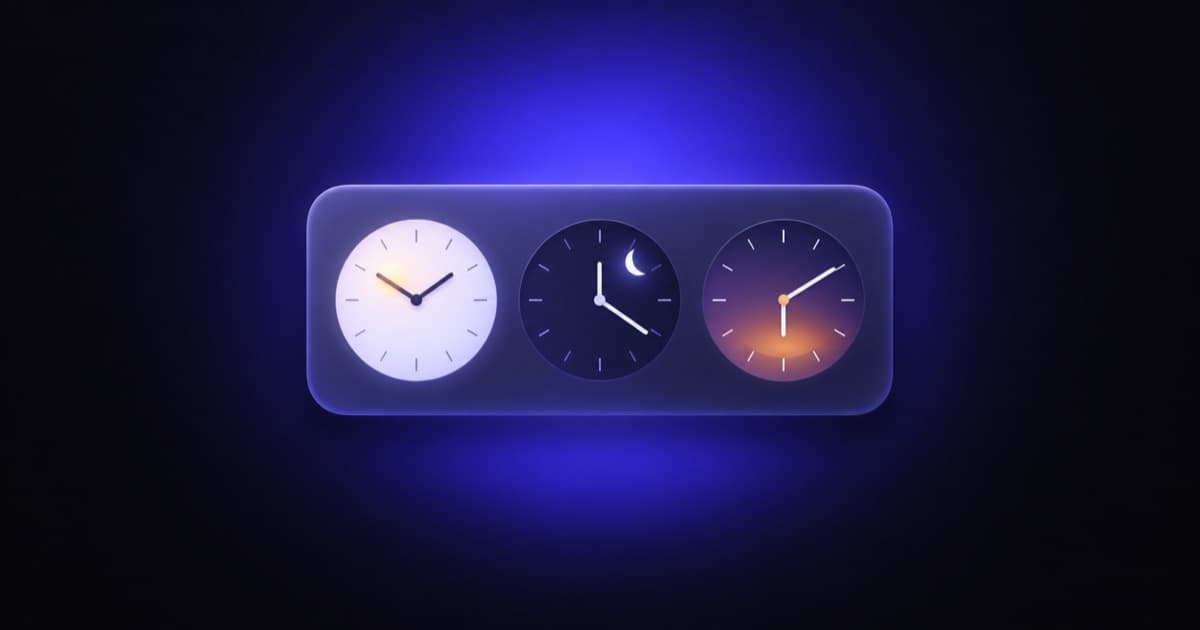
If you work with people in other time zones, or half your family lives somewhere else, you end up doing the same arithmetic several times a day. A world clock widget is supposed to end that. Apple ships one, and it's fine as far as it goes. The problem is that "as far as it goes" is a fixed layout of analog faces, and what most people actually want is a tile that says, in large readable type, "London 14:05, Tokyo 22:05," possibly with a hint of whether it's a sensible hour to message someone. This guide is about building that widget by describing it.
What the stock Clock widget gives you
The built-in World Clock widget shows analog faces for cities you've added in the Clock app, with a small digital time under each. It's clean. It's also fixed: you can't make one city bigger than the others, you can't switch to a digital-only layout, you can't show the day of the week for a zone that's already tomorrow, and you can't put a clock next to anything else. If analog faces are what you want, use it. If not, the rest of this post is for you.
Describe the clock you want
WidgetAI has a built-in world clock connector, so you can name any city and the AI wires up the right time zone. You start from a sentence:
"a medium widget showing the time in London, New York, and Tokyo"
The AI builds a tile with three labelled times and shows you a preview. From there, it's a conversation. "Make Tokyo the big one and the other two smaller underneath." "Use 24-hour time." "Add the day of the week under each city." Each message reshapes the widget; there's no layout editor and no list of settings. We wrote about what's going on under the hood in how the AI builds your widget.
Templates are there if you'd rather start from one. World Clock is the obvious pick, and Digital Clock, Flip Clock, Photo Clock (the time over one of your own photos), and Time + Battery are close cousins you can retarget to another zone in one message.
Layouts that work
A few world clock widgets that come up often, and the prompt that gets each:
- Two zones, small. "A small widget with the time in Berlin above the time in San Francisco, city names in small caps." Two zones is the sensible maximum on a small tile.
- Three zones, medium. "Three columns: Lisbon, Singapore, Sydney, with the time large and the city under it." This is the classic team-across-the-world tile.
- Home plus away. "My local time big on the left, and the time in Toronto smaller on the right." Local time is read from the device; the other zone comes from the connector.
- Digital, not analog. "Digital times only, no clock faces, monospaced font." If the reason you're here is that you don't want analog faces, this is the sentence.
- Flip-clock style. "Make it look like a flip clock, cream digits on dark." The Flip Clock template does this already, but the AI can bring the style to a multi-zone widget too.
Day and night at a glance
The thing a plain time doesn't tell you is whether it's a reasonable hour on the other end. WidgetAI supports rules, which map a value to a colour or a range, so the widget can shade each zone by its hour:
"Colour each city's background dark blue between 10pm and 7am and light otherwise"
Now you can see, without reading the number, that Sydney is asleep. Rules are one value in, one colour out, so they're deliberately simple, but they cover this exact need well: the hour drives the shade, and nothing else has to change. If you want to go deeper on what rules can and can't do, our health widgets guide uses them for step goals, and the idea is the same.
12-hour or 24-hour, and it stays that way
Ask for the format you want, "use 12-hour time with am/pm," and the widget keeps it. We made a point of teaching the AI not to silently flip a clock between 12 and 24-hour time when you ask for an unrelated change, because that's exactly the kind of thing that used to happen and is maddening when it does.
How accurate is the time?
A clock widget is the one case where refresh timing really matters, so here's how it works. A widget isn't a running app; iOS asks for a batch of snapshots ahead of time and shows them on schedule. For a clock, WidgetAI asks for a snapshot every minute, so the minutes tick over on time. Set the widget's refresh interval to every minute and the tile stays accurate to the minute. The system does the rest on its own budget, and clocks are the one widget type it handles well because the future snapshots are cheap to generate. The longer explanation, including why other widgets sometimes look stale, is in why your iPhone widget isn't updating.
Seconds are the honest limit. No iOS widget shows a ticking seconds hand, ours included; the platform doesn't render at that rate. More on that in what iOS widgets can't do.
Beyond the clock
Once you have a zone on a tile, it can share the tile with something else. "Add the weather in Tokyo under the time" gives you a small travel widget for the place you're going. "Put my battery percentage in the corner" uses the Time + Battery idea. The point of building your own widget is that it isn't limited to one kind of content; it's whatever you describe. A pairing with your schedule is covered in the calendar widget guide.
FAQ
Can an iPhone widget show more than one time zone? Yes. Apple's World Clock widget shows several analog faces, and WidgetAI builds a custom tile with two or three zones in whatever layout you describe, digital or analog, 12 or 24-hour.
Can I show the time in a city that isn't in the Clock app? Yes. Name the city in chat and the built-in world clock connector resolves its time zone. You don't need to add it to the Clock app first.
Can the widget show whether it's day or night in each zone? Yes. Ask for the background or an icon to change by hour, and WidgetAI uses rules to shade each zone by the local time.
Does the clock widget update every minute? Yes. Set the widget's refresh interval to every minute and the tile ticks over on time. Seconds aren't shown; iOS widgets don't render at that rate.
WidgetAI is made for iPhone, iPad and Mac, and it's on the App Store. The free plan covers 1 widget and 5 AI edits a month, which is enough to build a world clock and get the layout right. For other ideas, see the best iPhone Home Screen widgets for 2026.