 WidgetAI
GitHub contributions graph widget for iPhone
· Updated · Antoni, builder of WidgetAI
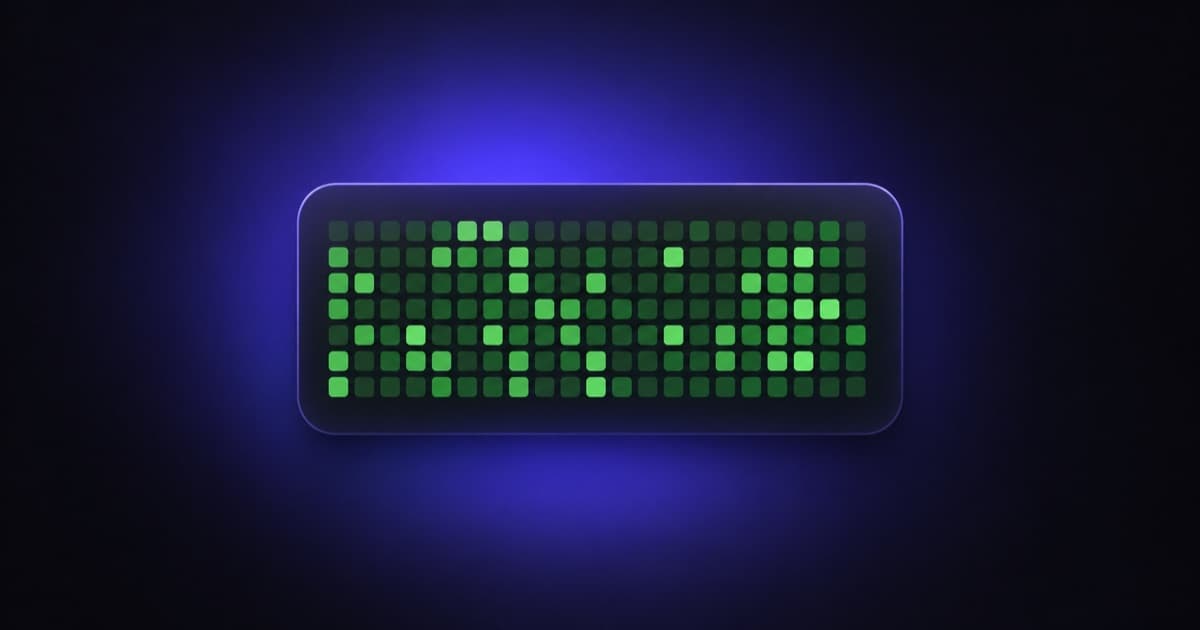
You already check your contribution graph. Be honest. You open the GitHub app, or the profile page in a browser, and you look at the little grid of green squares to see whether today counts yet. It's a small ritual, and it lives one tap too far away.
So put it on your Home Screen. That's the whole idea here: the commit graph you glance at anyway, rendered as an iPhone widget that sits next to your calendar and updates on its own. No app to open, no tab to find.
The fastest path
WidgetAI builds widgets from a chat conversation, so you don't lay anything out by hand. There's a GitHub template you can start from, or you can start blank and type what you want:
my GitHub contributions as a heatmap
The AI reads that, builds the widget, and shows it to you. Tell it your username and it wires the data up.
Under the hood there are three built-in GitHub connectors, and between them they cover most of what you'd want on a tile:
- Profile stats — followers, public repo count, and the rest of the numbers on your profile.
- Contributions — the calendar of daily activity that becomes the heatmap.
- Top repository — your most-starred or headline repo.
All three read public profile data by username. There's no OAuth dance, no signing into GitHub, no token to paste. You say who you are, the AI points the connectors at that handle, and the public data flows in. (Public means public, of course — a widget can only show what your profile already shows the world.)
Making the heatmap yours
The contribution graph renders as a heatmap node: a contribution-style grid of cells, one per day, shaded by how much you did. It's the same mental model as the graph on your profile, sized for a widget.
The defaults are fine, but the fun part is restyling it in plain language. Some things people ask for:
make it match GitHub's greens
use purples instead
make the empty cells darker so it reads in dark mode
Cell colors are yours to set, gradients are on the table, and the widget can be dark-mode aware so it doesn't glow white on an OLED Home Screen at night. If you want the grid to shift color by intensity, that's a rules-based color mapping — quiet days one shade, heavy days another.
You can also pair the graph with a line of stats. Keep it to what the data actually supports: follower count, public repos, total contributions. A stat line reading "1,204 contributions this year" under the grid looks great and is true. Resist the urge to ask for anything the connectors don't return — stick to the numbers GitHub publishes and the widget stays honest.
Other things worth a tile
Once you've got one dev widget, the rest of your Home Screen starts looking underused. A few ideas that lean on connectors already in the app:
- Service status. Is the API you depend on actually up? There are service-status connectors, so a widget can show green or red for the thing that ruins your afternoon when it goes down.
- Hacker News headlines. The RSS news connectors handle any feed, and Hacker News has one. A medium widget with the current front-page titles is a decent way to stay in the loop without opening the site and losing twenty minutes.
None of these need you to write code. They're the same chat-driven build as the GitHub widget — describe it, refine it, add it.
Point it at your own data
Here's where it gets interesting if you run things. With Pro, there's a custom HTTP API connector: give it any JSON endpoint and it'll pull fields out and put them on a widget.
That means the widget doesn't have to be about GitHub, or about anything we thought of. Point it at your CI so a red build is on your Home Screen. Point it at your error tracker and watch the open-issue count. Point it at your own product's metrics endpoint and keep today's signups in your peripheral vision. If it returns JSON, it can be a widget. We wrote up the full walkthrough in building a custom HTTP API widget if you want the details.
About refreshes
One honest note, because you're a developer and you'll notice: iOS does not let a widget update whenever it wants. The system budgets refreshes and decides when your widget gets to run, and there's no way around that — it's how iOS widget refresh works for every app, not a limit we invented.
The good news is that a contribution graph is exactly the kind of thing that doesn't care. You are not day-trading your commit count. A grid that catches up every so often is completely fine for glancing at, and by the time you've noticed today's square is still empty, you probably haven't pushed anything yet anyway.
FAQ
Do I have to sign in to GitHub? No. The GitHub connectors read public profile data by username. You tell the AI your handle; that's the whole setup.
Can it show private contributions? It shows what your public profile shows. If your profile is set to display private contributions publicly, those counts are already public and will appear; otherwise the widget sees what everyone else does.
What sizes are there? Small and medium. Large widgets aren't in the app yet. A medium tile fits the heatmap plus a stat line comfortably.
How much does it cost to try? The free plan includes 1 widget and 10 AI edits a month, which is plenty to build a GitHub widget and live with it for a while.
Is there a version for my Mac or the web? It's an iPhone app. That's the product.
If you want to see how the chat actually turns a sentence into a working widget, we broke it down in how the AI builds your widget, and there's more on the app itself in the launch post.
WidgetAI is made for iPhone and Mac, and it's available on the App Store now.